
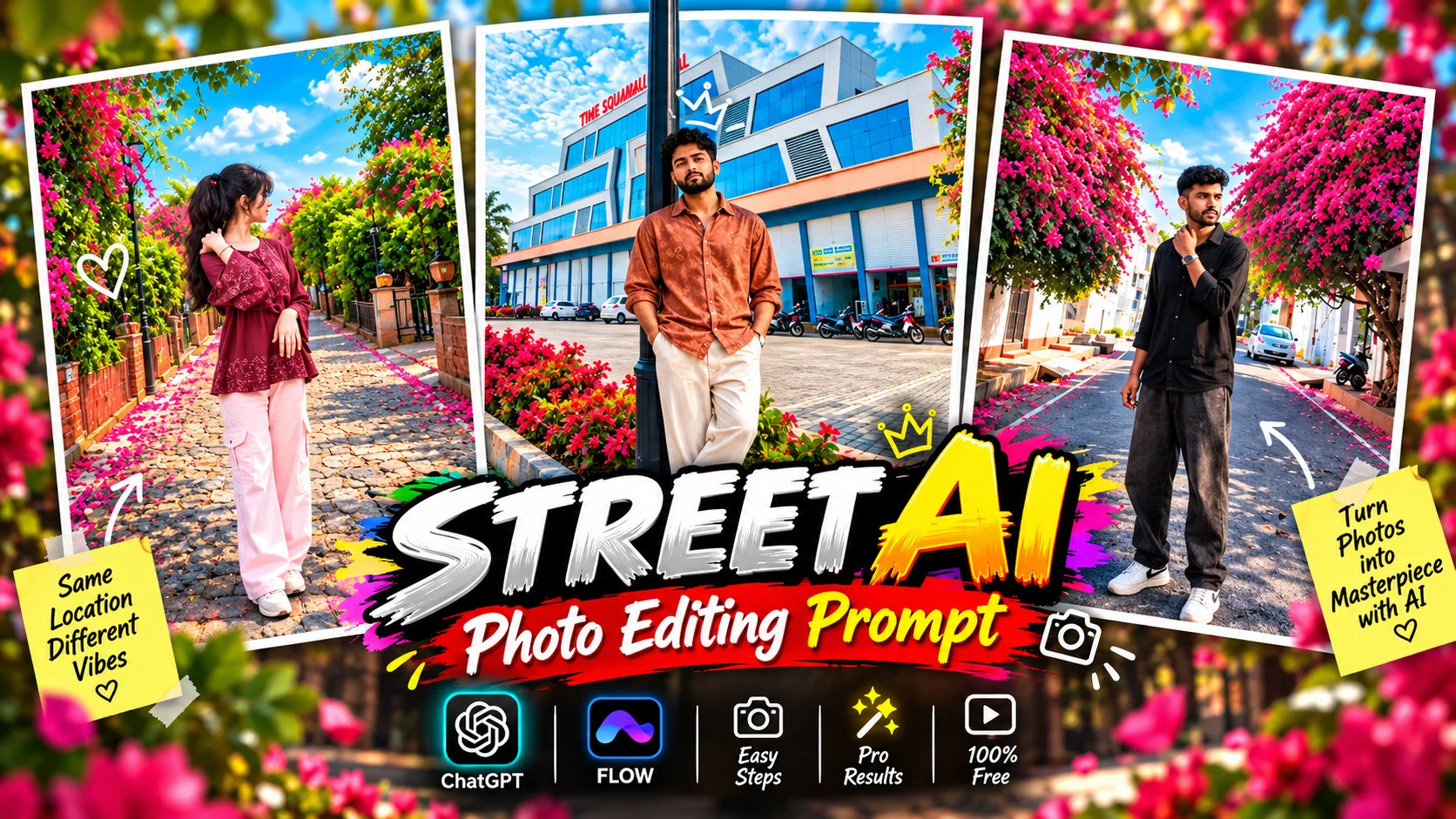
An ordinary portrait can look completely different when it is placed naturally into the right outdoor environment. A colorful street, garden walkway, tree-lined road, or attractive residential setting can give a simple photo the appearance of a planned outdoor photoshoot.
The important part is making the person and background look as though they originally belonged in the same photograph. Lighting, perspective, proportions, and placement need to work together while the person’s natural appearance remains unchanged.
The AI street photo editing prompt below is designed for a two-image workflow. You provide your own photo together with the outdoor background you want to use, and the AI integrates the person into that background without unnecessarily changing the scene.
What Is an AI Street Photo Editing Prompt?
An AI street photo editing prompt is an instruction that tells an image-editing tool how a person should be integrated into an outdoor background.
Instead of manually cutting out the subject, adjusting the scale, matching the scene, and refining the final composition in traditional editing software, you provide the source images and explain what should remain unchanged.
For this particular editing style, two images are important:
- Your original portrait or full-body photo
- The street, park, pathway, or outdoor background you want to use
The goal is not to redesign the background. The supplied background should remain intact while the person is placed into it as naturally as possible.
Why Outdoor Street Photos Look Attractive
Outdoor environments naturally provide visual depth that can make a portrait more interesting.
Trees, buildings, flowers, pathways, and roads can create layers behind the subject. Long streets and walkways can also form leading lines that direct attention toward the person.
Different locations can produce very different moods. A flower-covered residential street can feel colorful and relaxed, while a clean city walkway can create a more modern appearance. A green garden can produce a softer look, while a sunset street can create a warmer atmosphere.
The background should complement the original subject rather than overpowering them.
AI Street Photo Editing Prompt
Prompt 1: Realistic Street Background Photo Edit
How to Create an AI Street Photo with ChatGPT
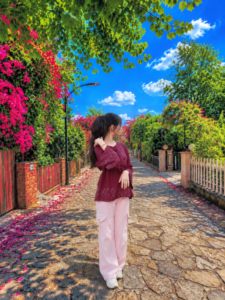
Start by choosing two suitable images. The first should be the photo containing the person you want to place into the new scene. A clear portrait or full-body photograph generally works better because the person’s facial features and proportions are easier to identify.
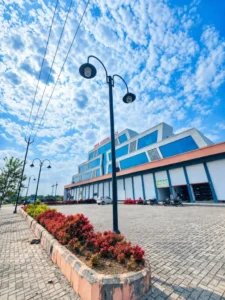
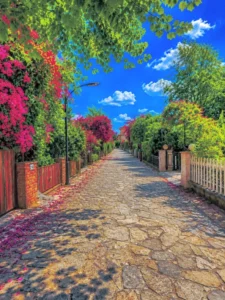
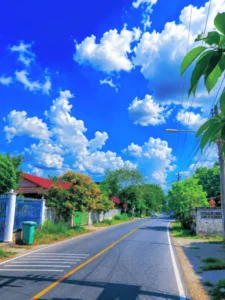
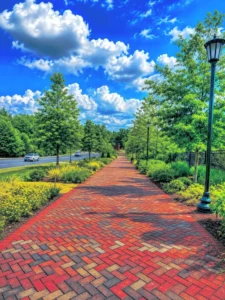
The second image should be the actual outdoor background you want to use. It could be a street, garden, pathway, park, residential road, or another suitable location.
Open ChatGPT and start a conversation that supports image editing. Upload both images, keeping the person photo first and the background photo second so the prompt instructions remain clear.
Copy the prompt from the box above and paste it into the chat.
The important instruction is that the second image should remain unchanged. The AI should integrate the person into that background rather than creating a completely different environment.
After the image is generated, check the person’s face, body proportions, placement, background, and overall integration. If something looks unnatural, ask for a specific correction rather than changing the entire concept.
Choosing the Right Street Background
The background has a major effect on how convincing the final image looks.
Try to choose an image whose perspective is reasonably compatible with your original portrait. For example, if your source image shows your entire body from a normal standing angle, a street background photographed from a similar perspective will usually be easier to combine naturally.
A tightly cropped portrait may not fit as convincingly into a wide full-body street composition without additional adjustments.
Suitable outdoor backgrounds can include:
- Colorful residential streets
- Garden pathways
- Modern sidewalks
- European-style streets
- Flower-lined roads
- Sunset walkways
- Rainy streets
- Green parks
- Tree-lined roads
The best background is not necessarily the most complicated one. A clean scene with suitable perspective can often produce a more believable result.
How to Make the Person Fit the Background Naturally
Successful background editing depends on more than simply placing one image over another.
The person needs to appear correctly positioned within the scene. Their scale should make sense relative to nearby objects, and their placement should match the perspective of the background.
Natural integration also means avoiding unnecessary changes to the person’s face or body proportions. The purpose of this prompt is to change the setting while retaining the person’s original appearance.
Because the supplied background is an important part of this particular prompt, avoid requesting unrelated objects or major environmental changes after uploading it. Those instructions would conflict with the requirement to keep the background unchanged.
Tips for Better AI Street Photo Results
Use the clearest source portrait available. A sharp photo with visible facial features and a naturally exposed subject gives the editing process a stronger reference.
Choose the background carefully as well. Perspective compatibility matters. A standing full-body portrait generally works more naturally with a background that provides enough visible ground and space for the person.
Do not overload the prompt with unnecessary quality terms or contradictory visual instructions. The central goal is straightforward: preserve the person, preserve the supplied background, and combine the two realistically.
If the first result has one specific problem, correct that problem individually. For example, you might ask for more natural subject placement while explicitly instructing the tool to leave the face and background unchanged.
Common Mistakes to Avoid
Using a Low-Quality Person Photo
A blurry or very dark source image provides less facial and body information. Use a clearer photo when possible.
Choosing an Incompatible Background
A person photographed from one perspective may look unnatural in a background captured from a dramatically different camera angle.
Asking the AI to Change Too Many Things
The core prompt specifically requires the supplied background to remain unchanged. Adding requests for new trees, buildings, roads, flowers, weather effects, or other major environmental changes would work against that goal.
Changing the Person Too Much
Avoid unnecessary face reshaping, body modification, or extreme beauty effects when the objective is to preserve the person’s original appearance.
Repeating Quality Keywords
There is little value in repeating phrases such as “8K,” “ultra realistic,” and “masterpiece” throughout the same prompt. Clear editing instructions are more important than repeatedly adding quality labels.
Why Some Street Photo Edits Look Unrealistic
An edited image can look unnatural when the subject does not fit the geometry of the scene.
Incorrect scale is one possible problem. If the person appears too large or too small compared with nearby objects, the edit will immediately feel artificial.
Perspective is another factor. A full-body subject captured at eye level may not blend naturally into a background photographed from an extreme high or low angle.
Lighting and placement can also influence realism. Even though this prompt tells the AI not to change the supplied background, the person still needs to be integrated in a way that visually fits that environment.
The most convincing result should make the person look as though they were originally present when the background photograph was taken.
Frequently Asked Questions
Can I use my own photo for AI street photo editing?
Yes. Use your photo as the first reference image and the outdoor background as the second image. A clear source photo will generally provide better facial and body information.
Can I change the background without changing my face?
Yes. The prompt specifically instructs the AI to preserve the person’s face and body size while placing them into the supplied background.
What type of photo works best?
A clear portrait or full-body photograph with visible facial features and decent lighting is suitable. The perspective should ideally be compatible with the background you intend to use.
Do I need to generate the street background with AI?
No. This particular workflow is designed to work with an existing second image. You can provide the street or outdoor background you want to use.
What aspect ratio does this prompt use?
The prompt specifies a 3:4 aspect ratio.
Can I use the result for Instagram?
Yes. A 3:4 portrait composition can be used for social content, although you may need to crop or resize the finished image depending on the specific placement requirements of the platform.
Why does my edited image sometimes look unrealistic?
Differences in camera perspective, subject scale, lighting, or positioning can make the person look disconnected from the background. Choosing more compatible source images can help.
Conclusion
AI street photo editing can give a simple portrait a completely different setting without requiring complicated manual compositing.
For this workflow, the key is to use two appropriate images: a clear photograph of the person and a suitable outdoor background. The prompt then instructs the AI to integrate the person into the second image while leaving the background, facial appearance, and body size unchanged.
A compatible camera perspective and realistic subject placement are more important than filling the prompt with excessive effects. Start with good source images, keep the instructions focused, and inspect the final face, proportions, placement, and background before using the result.
